Introduction
Google Chrome is one of the most popular web browsers in the world, and it continues to introduce features that make browsing easier, faster, and more convenient. Whether someone uses Chrome for work, studying, entertainment, shopping, or everyday internet activities, small improvements can make a significant difference. One feature that deserves attention is the Chrome Side Panel.
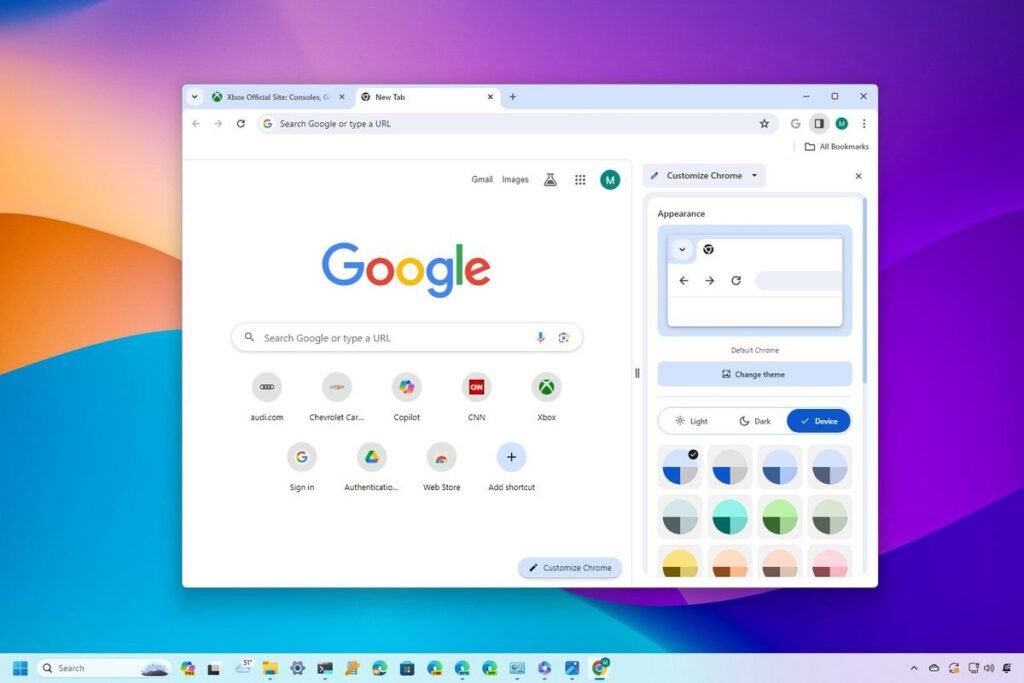
The Chrome Side Panel is a built-in browser feature that allows users to access helpful tools without leaving their current webpage. Instead of opening several new tabs or switching between different browser windows, users can display certain features in a dedicated panel alongside the main browsing area. This makes multitasking easier and helps people stay focused while working online.
For example, imagine reading an interesting article and wanting to check a saved bookmark at the same time. Normally, you might open another tab, search through your bookmarks, and return to the original page. With the Chrome Side Panel, supported tools can appear beside the webpage, making this process more convenient.
The feature is also useful for people who regularly work with reading lists, browsing history, bookmarks, Google Lens, and reading tools. Depending on the Chrome version, account, device, and available features, users may also encounter newer AI-powered experiences in the side panel.
Let’s go through everything you need to know about the Chrome Side Panel, including how it works, how to open it, its main features, customization options, troubleshooting methods, and practical benefits.
1. What Is Chrome Side Panel?
The Chrome Side Panel is a browser interface that displays selected tools in a vertical area alongside the main webpage. It gives users access to useful browser features without requiring them to leave the website they are currently viewing.
Unlike traditional browser pop-ups, the side panel is designed to remain available while users interact with the main browsing window. This makes it particularly helpful when performing tasks that require frequent access to saved information or browser utilities.
Google introduced the side panel experience to make Chrome more flexible and productive. Rather than forcing users to manage everything through separate tabs, Chrome provides a dedicated space for supported tools. Users can open the panel, select an available feature, and continue browsing normally.
Another useful aspect is its flexibility. Depending on the Chrome version and the selected tool, users may be able to resize the panel, change its position, or pin particular features for easier access. These options help create a browsing environment that feels more organized.
2. Why Is Chrome Side Panel Useful?
Modern internet users rarely perform just one activity at a time. Someone might be reading an article while checking references, comparing products, reviewing saved websites, or looking through previously visited pages. Switching between tabs repeatedly can interrupt concentration and make simple activities take longer.
The Chrome Side Panel helps reduce this problem by keeping selected browser tools close to the active webpage. Users can access information without completely changing their browsing environment.
For students, the feature can be helpful when researching different subjects. They can keep an educational website open while using available side panel tools to manage bookmarks or access reading materials. This can make online research feel more organized.
Professionals can also benefit from the feature. People who regularly use Chrome for writing, research, project planning, and general office tasks may appreciate having frequently used tools available in one location.
Ultimately, the main purpose of the Chrome Side Panel is convenience. It does not replace every browser feature, but it makes certain activities easier by reducing unnecessary navigation.
3. Main Features of Chrome Side Panel
The Chrome Side Panel supports several useful browser experiences. The exact options available can vary depending on the Chrome release, operating system, account configuration, and regional availability.
Some of its familiar built-in features include:
- Bookmarks
- Reading List
- Browsing History
- Google Lens
- Reading Mode
- Other supported Chrome experiences
Each feature serves a different purpose, allowing users to choose the tools that best fit their browsing habits.
The side panel can also provide access to newer experiences as Google updates Chrome. For example, Google has introduced Gemini-powered browsing assistance in supported versions and markets. These AI experiences can help users understand information, compare content, and work with different webpages.
It is important to remember that not every Chrome installation will display exactly the same options. Some features may be limited to particular devices, accounts, or versions.
4. How to Open Chrome Side Panel
Opening the Chrome Side Panel is generally straightforward. Users can access supported side panel features through Chrome’s toolbar and browser menus.
First, launch Google Chrome on your desktop computer. Make sure that you are using an updated version because older releases may not include all the latest interface options.
Next, look for the relevant side panel or toolbar icon. Depending on your configuration, you may see an icon associated with bookmarks, reading lists, Google Lens, or another supported feature. Selecting the appropriate option opens its content in the side panel.
You can also access certain tools through Chrome’s three-dot menu. Open the menu in the upper-right corner and look for the relevant option under bookmarks, history, or additional tools.
Once the panel appears, you can continue using your current webpage. Select another available tool when needed or close the panel using its close control.
If the interface looks different on your computer, do not assume that something is broken. Chrome regularly changes its menus and feature placement.
5. How to Use Chrome Side Panel for Bookmarks
Bookmarks are among the most useful tools available through Chrome’s side panel experience. They allow users to save websites they want to revisit without remembering or manually entering their addresses.
For example, someone researching digital marketing might save several educational websites, industry blogs, and reference pages. Instead of searching for those websites again, they can open the bookmark panel and select the page they need.
The side panel makes this process more convenient because bookmarks can be accessed while another website remains open. This is particularly helpful when comparing information from different sources.
Users can also organize bookmarks into folders. Creating separate folders for work, personal interests, education, shopping, and research can make saved websites easier to manage.
A well-organized bookmark collection saves time and reduces the frustration of searching through a long list of saved pages.
6. Understanding the Chrome Reading List
The Reading List is another helpful feature associated with Chrome’s side panel. It is designed for people who discover interesting content but do not always have time to read it immediately.
Imagine finding a long educational article while working on an important project. Instead of leaving it open in a browser tab, you can save it to your Reading List and return to it later.
This is especially useful for students, researchers, writers, and people who enjoy reading online publications. It provides a simple way to collect useful content without creating an unnecessarily large number of open tabs.
The Reading List also helps users distinguish between content they have already read and material they still want to explore. Depending on the available interface, saved entries can be managed directly from the panel.
For the best experience, review your Reading List occasionally. Remove articles you no longer need and keep useful resources organized.
7. Using Chrome Side Panel to Access Browsing History
Browsing history helps users find websites they previously visited. This can be extremely useful when someone remembers reading an article but cannot recall its title or website address.
Through Chrome’s history functionality, users can review previously visited pages and return to relevant websites. When the history experience is opened in the side panel, it provides another way to access this information without leaving the current browsing environment.
For example, a student might remember visiting a particular research website several days earlier. Rather than repeating the entire Google search process, they can check their browsing history and look for the original page.
Browsing history is also useful for recovering accidentally closed or forgotten pages, although the exact recovery options depend on Chrome’s available controls.
Users should understand that browsing history is not a permanent record of everything they have viewed. Incognito activity is not saved in the normal browsing history, and deleted history entries cannot necessarily be recovered through Chrome.
8. Google Lens in Chrome Side Panel
Google Lens is a visual search technology that allows users to explore information through images and selected content.
When available through Chrome’s side panel, Google Lens can help users investigate visual information without manually describing everything they see.
For example, imagine finding an unfamiliar plant in an online photograph. Instead of opening another search engine and typing a detailed description, you can use Google Lens to explore visually related information.
Google Lens can also help users identify products, recognize objects, explore landmarks, and find visually similar content. Its usefulness depends on the image, the quality of available information, and the capabilities supported in the current version.
For online shopping, visual search can be particularly convenient. Users may find similar products or explore additional information about an item displayed on a webpage.
However, visual search results should still be checked carefully. An image match does not automatically guarantee that two products have identical specifications, quality, or pricing.
9. Chrome Side Panel and Reading Mode
Reading Mode is designed to create a more comfortable reading experience by reducing unnecessary visual distractions.
Many websites contain advertisements, navigation menus, pop-ups, banners, and other interface elements. Although these features may be useful for website owners, they can make long articles difficult to read.
Chrome’s Reading Mode presents supported webpage content in a cleaner format. This can help readers focus on the actual text rather than the surrounding website design.
When available through the side panel, Reading Mode provides a convenient way to access this simplified reading experience. Users can read an article while keeping the main browser interface available.
This feature can be especially valuable for people who regularly read lengthy educational materials, news articles, technical documentation, and research content.
It is worth remembering that Reading Mode may not work perfectly with every website. Pages with unusual layouts, interactive content, or complicated structures may not display exactly as expected.
10. How to Resize Chrome Side Panel
One useful aspect of the Chrome Side Panel is that its width can be adjusted in supported desktop versions.
Not every user prefers the same panel size. Someone reading a long article might want a wider panel, while another person checking bookmarks may prefer a narrower layout.
To resize the panel, open it and move your cursor toward the divider separating the panel from the main webpage. When the resize control appears, select and drag the divider to adjust the width.
A wider panel provides additional room for text and other content. However, it also reduces the available space for the main webpage.
A narrower panel preserves more room for browsing but may make some content harder to view.
The best option depends on your screen size and the activity you are performing. Experiment with different widths until you find a comfortable arrangement.
11. How to Change Chrome Side Panel Position
Chrome provides an option to change which side of the browser displays the side panel on supported desktop installations.
Some people prefer the right side because it feels familiar and leaves the main webpage positioned naturally. Others may find the left side more comfortable, especially when working with certain screen layouts.
To change the position, open Chrome and select the three-dot menu. Navigate to Settings and choose Appearance.
Look for the Side panel setting. If the option is available in your version, select your preferred side.
Chrome will use the selected position when displaying supported side panel experiences.
This customization is useful because it allows users to arrange the browser according to their preferences instead of adjusting their workflow to a fixed interface.
12. How to Pin Chrome Side Panel Features
Pinning is a convenient option for users who frequently access a particular side panel tool.
Instead of repeatedly opening menus to locate a feature, users can pin supported tools so that their icons remain accessible in the toolbar area.
Google’s documentation identifies options such as Google Lens, Bookmarks, Reading List, History, and Reading Mode among the features that can be pinned in supported Chrome versions.
To pin a feature, open Chrome and access the relevant tool through its menu. Depending on the feature, you may need to open the side panel first.
Look for the pin option associated with that tool and select it. The feature should then become easier to access from the browser toolbar.
If you no longer need a pinned feature, you can unpin it through the relevant toolbar or menu controls.
Pinning is particularly helpful for people who use the same tools every day. It creates a more personalized browsing environment and reduces unnecessary clicks.
13. Chrome Side Panel for Students
Students regularly use multiple online resources to complete assignments, prepare presentations, and understand complicated subjects.
The Chrome Side Panel can make these activities easier by providing access to selected browser tools while students continue viewing their primary learning materials.
For example, a student reading a history article might save other useful references to the Reading List. They can also use bookmarks to organize educational websites according to different subjects.
When preparing an assignment, browsing history can help students return to previously visited resources. This is useful when they have forgotten the name of a particular website.
Reading Mode can also make long educational articles more comfortable to read by reducing visual distractions.
However, students should still evaluate the quality of their sources. A convenient browser interface does not automatically make every website accurate or trustworthy.
14. Chrome Side Panel for Professionals
Professionals often work with several websites throughout the day. Their activities may include reviewing reports, researching competitors, checking documentation, comparing services, and organizing online resources.
The Chrome Side Panel can support these workflows by keeping selected tools accessible without requiring constant tab switching.
For example, a marketing professional may save industry reports in bookmarks and use the Reading List to collect articles for later research.
A content writer might use the panel to manage reference websites while keeping a draft open in the main browser window.
Similarly, business owners can use bookmarks to organize supplier websites, customer resources, and important online services.
These benefits are not limited to a particular profession. Anyone who spends considerable time browsing the internet can find value in having frequently used tools available in one convenient location.
15. Chrome Side Panel and AI-Powered Browsing
Browser technology continues to evolve, and artificial intelligence is becoming an increasingly important part of the browsing experience.
Google has introduced Gemini-powered features in Chrome that provide an AI assistant through a side panel for supported users, devices, and regions. This experience is different from the traditional bookmarks or history panels because it focuses on helping users understand and interact with online information.
For example, users may be able to ask questions about webpage content, summarize information, compare products, or explore topics without repeatedly switching between browser tabs.
Google announced an expanded Gemini experience for Chrome in January 2026, highlighting side panel assistance and additional capabilities for supported desktop users. blog.google+1
These AI-powered capabilities can make browsing more interactive. Instead of simply opening a webpage and reading everything manually, users may be able to request explanations or summaries that help them understand the material more quickly.
However, AI-generated responses should not automatically be treated as verified facts. Users should check important details against reliable sources, particularly when dealing with financial, legal, medical, or professional decisions.
Availability also varies. Not every Chrome user will see the same AI features, and some capabilities may require supported accounts or subscriptions.
16. Difference Between Chrome Side Panel and Browser Pop-Ups
The Chrome Side Panel and traditional browser pop-ups serve different purposes.
A pop-up generally appears as a small floating window or menu that provides temporary access to an action. It may disappear when users click elsewhere or interact with another part of the browser.
The side panel is designed for more extended interaction. It remains alongside the main webpage, allowing users to continue working with the selected tool.
For example, opening a bookmark through a conventional browser menu may require selecting an item and returning to the webpage. The side panel provides a dedicated area where users can browse their saved links.
Another difference is flexibility. Supported side panels can be resized, while most browser pop-ups have a fixed layout.
Neither approach is universally better. Pop-ups are useful for quick actions, while side panels are more appropriate for tools that users need to access repeatedly.
17. Chrome Side Panel vs. Split View
Chrome Side Panel and Split View are sometimes confused because both features support multitasking. However, they are designed for different purposes.
The side panel provides access to selected browser tools in a narrow area beside the active webpage. These tools may include bookmarks, history, Reading List, and other supported experiences.
Split View, on the other hand, allows users to display two webpages side by side within the browser. It is useful when comparing information from different websites or viewing reference material while working on another page.
For example, someone comparing two online products might benefit more from Split View because both product pages can remain visible.
Someone who wants to check saved bookmarks while reading an article may prefer the Chrome Side Panel.
Both features can improve productivity, but their usefulness depends on the task. Choosing the right one can make everyday browsing more comfortable.
18. How to Close Chrome Side Panel
Closing the Chrome Side Panel is simple and does not normally affect the webpage currently open in the main browser window.
When the panel is visible, look for the close icon near its upper-right area. Select it to hide the panel.
Your main webpage should remain open, allowing you to continue browsing without interruption.
Closing the panel does not necessarily delete bookmarks, reading list entries, or browsing history. It simply removes the panel from the current view.
If you want to access the same feature again, open it through the appropriate toolbar icon or Chrome menu.
This makes the side panel easy to use even when you only need it occasionally.
19. Chrome Side Panel Not Showing: Common Reasons
Sometimes users open Chrome but cannot find the side panel option. This can happen for several reasons, including interface differences, browser versions, account restrictions, and disabled features.
One common reason is that the user is looking for a specific icon that has not been pinned to the toolbar. The feature may still be available through Chrome’s menu.
Another possibility is that the browser is outdated. Older Chrome releases may have a different layout or lack certain improvements.
Managed devices can also have restrictions. Schools and workplaces sometimes apply browser policies that control which features employees or students can access.
Finally, Google may roll out certain features gradually. This means two users with different accounts or devices might not see identical options.
Understanding these possibilities can prevent unnecessary troubleshooting.
20. How to Fix Chrome Side Panel Not Working
If the Chrome Side Panel is not working correctly, start with basic troubleshooting before changing advanced browser settings.
First, restart Chrome. Close the browser completely and open it again. Temporary interface problems sometimes disappear after a fresh restart.
Next, check whether Chrome has an available update. Open the three-dot menu, select Help, and choose About Google Chrome. The browser will check for updates and install an available release when appropriate.
You should also check whether the relevant feature is accessible through the browser menu rather than relying only on its toolbar icon.
If the problem continues, temporarily disable recently installed extensions to identify whether an extension is interfering with the browser interface.
For managed computers, contact the administrator if a browser policy appears to be restricting access.
Avoid deleting your browsing data or resetting Chrome immediately. These actions can affect saved information and settings, so they should only be considered after simpler solutions have been attempted.
21. Is Chrome Side Panel Safe to Use?
The built-in Chrome Side Panel is part of the browser experience, and using standard features such as bookmarks, history, and Reading List is generally straightforward.
However, users should understand that different side panel tools may handle information in different ways.
For example, bookmarks and reading lists are browser features, while online services and AI-powered assistants may process information according to their own privacy policies and settings.
Users should be careful when sharing personal information with online tools. Avoid entering passwords, banking information, confidential business details, or other sensitive data into services unless you understand how the information is handled.
It is also important to distinguish official Chrome features from third-party extensions. An extension may provide its own side panel interface, but that does not mean it is developed or maintained by Google.
Before installing an extension, review its publisher, permissions, privacy information, and user feedback.
A little caution can help users enjoy the convenience of browser tools without unnecessarily exposing their information.
22. Chrome Side Panel Privacy Considerations
Privacy is an important consideration whenever a browser provides additional ways to interact with online content.
Chrome’s standard browser features and third-party services do not necessarily follow identical data-handling practices. Users should understand which feature they are using before sharing information.
For example, browsing history contains information about previously visited websites. If other people use the same computer or browser profile, they may be able to access that information unless appropriate privacy protections are in place.
AI assistants introduce additional considerations because users may submit webpage content or questions for processing. Always review the applicable privacy settings and service policies.
People who use shared computers should also consider signing out of personal accounts when finished.
For additional protection, keep Chrome updated and avoid installing extensions from unknown publishers.
The goal is not to avoid useful browser features. Instead, users should understand how those features work and make informed decisions about the information they share.
23. Can You Customize Chrome Side Panel?
Customization is one of the reasons the Chrome Side Panel can fit different browsing habits.
Users can change its position in supported versions, adjust its width, and pin certain tools for quicker access.
These options allow people to create a browser layout that supports their everyday activities.
For example, someone who frequently reads long articles might prefer a wider panel and easy access to Reading Mode. Another user who regularly manages saved websites may prefer to keep Bookmarks and Reading List close at hand.
The customization options are useful because people do not all use browsers in the same way.
However, the available settings are controlled by Chrome. Users cannot freely redesign every part of the interface or guarantee that every third-party tool will support the same customization options.
24. Chrome Side Panel on Different Devices
Chrome is available across desktop and mobile platforms, but the interface is not identical everywhere.
The familiar built-in side panel experience is primarily associated with desktop Chrome. Windows, macOS, Linux, and ChromeOS users may find different supported tools depending on their installation and browser configuration.
On desktop computers, the larger screen provides enough room to display a webpage and a side panel simultaneously.
Mobile browsers have more limited screen space. Their interfaces are designed differently, and desktop side panel instructions should not automatically be applied to Android or iOS.
For example, a user searching for the side panel icon on a mobile phone may not find the same controls shown in desktop tutorials.
If you are using Chrome on a smartphone, look for mobile-specific features rather than expecting the desktop interface to appear.
Understanding this difference makes it easier to follow the correct instructions for your device.
25. Tips for Getting the Most Out of Chrome Side Panel
Using the Chrome Side Panel effectively is not just about opening it. The real benefit comes from choosing the tools that support your daily browsing activities.
Start by identifying which features you use most frequently. If you regularly revisit websites, organize your bookmarks. If you discover useful articles throughout the day, make better use of the Reading List.
Keep your toolbar organized by pinning supported tools that you access regularly. This can reduce the number of steps needed to open them.
Avoid keeping the panel open when you do not need it, especially on smaller screens. A narrower browsing area may make some websites less comfortable to use.
It is also a good idea to keep Chrome updated. Browser updates can improve performance, fix problems, and introduce new features.
Finally, remember that the side panel is intended to make browsing easier. You do not need to use every available option. Focus on the features that genuinely improve your experience.
26. Common Mistakes Users Make With Chrome Side Panel
Although the Chrome Side Panel is relatively easy to understand, users sometimes make mistakes that create unnecessary confusion.
One common mistake is assuming that every Chrome installation has exactly the same features. In reality, browser versions, account types, operating systems, and regional availability can affect what users see.
Another mistake is confusing the side panel with an extension popup. These are different browser interfaces, and they do not necessarily offer the same behavior.
Some users also believe that closing the side panel removes saved information. In normal use, closing the panel simply hides the interface. It does not automatically delete bookmarks or Reading List entries.
Another issue is installing unnecessary extensions to access features that Chrome already provides. Before installing anything, check the built-in browser menus.
Finally, users should avoid treating AI-generated summaries as guaranteed accurate. They can be useful starting points, but important information should always be verified.
27. The Future of Chrome Side Panel
Browser interfaces continue to evolve as users expect more convenient ways to manage information and complete online activities.
The Chrome Side Panel provides a flexible foundation for these improvements because it allows additional tools to appear alongside the main browsing experience.
AI-powered browsing is one important area of development. Google’s Gemini integration demonstrates how a browser can move beyond displaying webpages and provide assistance with understanding and comparing online information.
Other improvements may focus on productivity, accessibility, research, and better integration with online services.
The challenge for browser developers is balancing additional functionality with simplicity. A browser should remain easy to navigate even as more tools become available.
The side panel offers a practical approach to this challenge by giving users access to additional functionality without completely changing the traditional browsing experience.
As Chrome continues to develop, the side panel may become an even more important part of how people interact with online content.
Conclusion
The Chrome Side Panel is a useful browser feature that makes everyday internet activities more convenient. By providing access to bookmarks, Reading List, browsing history, Google Lens, Reading Mode, and other supported tools, it helps users manage information without constantly switching between tabs.
Its customization options also make the browsing experience more flexible. Users can adjust the panel’s position and width, pin frequently used tools, and choose features that match their individual needs.
The introduction of AI-powered experiences is another interesting development. Gemini integration demonstrates how Chrome is expanding the role of the side panel beyond traditional browser utilities and toward more interactive online assistance.
Whether you are a student, professional, researcher, writer, or everyday internet user, the Chrome Side Panel can help simplify your browsing routine. It may not replace every traditional browser feature, but it offers a convenient way to keep important tools within reach.
The best approach is to explore the available options, organize the features you use regularly, and customize the panel according to your workflow. Once you understand how it works, this small browser feature can make everyday browsing feel much more organized and productive.
YOU MAY HAVE MISSED