Introduction
Google Chrome is one of the most widely used web browsers in the world. Millions of people rely on it every day to browse websites, watch videos, complete online tasks, communicate with others, shop, study, and manage their professional work. Its popularity comes from its simple interface, fast browsing experience, useful built-in features, and compatibility with modern web technologies. However, there is much more happening inside Chrome than most users realize.
Understanding the components of Chrome helps explain how the browser works, how it displays websites, how it manages multiple tabs, and how it protects users while they are online. Chrome is not simply a window that opens websites. It is a sophisticated software application made up of several interconnected components, each responsible for a particular task. These components work together to deliver a smooth and reliable browsing experience.
Some components are easy to recognize, such as the address bar, bookmarks bar, tabs, and browser menu. Others operate behind the scenes, including the rendering engine, JavaScript engine, network services, browser process, and security systems. Every component has a specific purpose, and the browser depends on their cooperation to perform everyday activities.
In this detailed guide, we will explore the major components of Chrome, explain their responsibilities, and look at how they work together. Whether you are a beginner, a student, a developer, or someone interested in browser technology, this article will help you understand Chrome from both a user-interface and technical perspective.
Let’s go!
1. What Is Google Chrome?
Google Chrome is a web browser developed by Google. It allows users to access websites and web applications through an easy-to-use graphical interface. The browser is available on multiple platforms, including Windows, macOS, Linux, Android, and iOS, although its underlying implementation can differ depending on the operating system.
Chrome is built around the Chromium open-source browser project, with Google adding its own services, features, integrations, and distribution mechanisms. This foundation provides support for modern web standards and technologies. It also allows Chrome to receive improvements in performance, security, compatibility, and usability over time.
The main purpose of Chrome is to connect users with information and online services. When someone enters a website address, Chrome communicates with the appropriate web server, receives website resources, processes the content, and displays the finished page. Several internal components participate in this process, even when the user only sees a loading animation and a webpage appearing on the screen.
2. Understanding the Main Components of Chrome
Chrome contains two broad categories of components: visible interface components and internal technical components. Interface components are the elements users interact with directly, while internal components perform the processing required to load websites, execute scripts, manage memory, and maintain security.
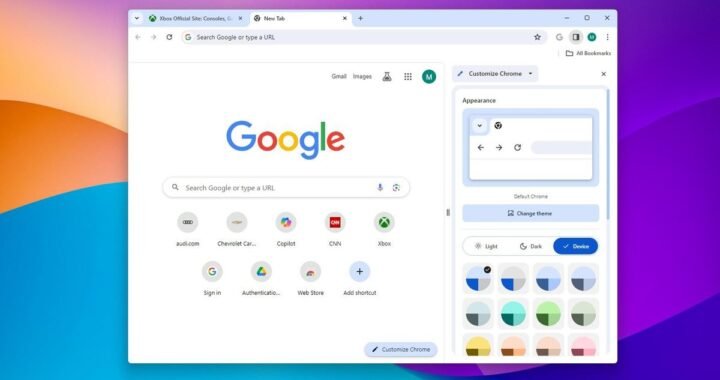
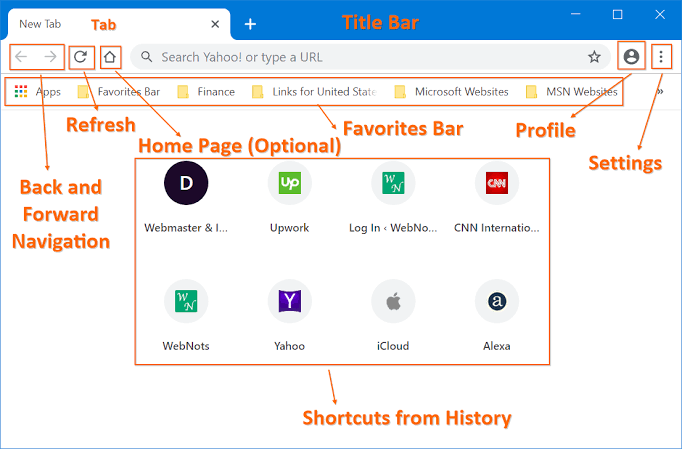
The visible parts include tabs, the address bar, navigation buttons, bookmarks, the browser menu, and the downloads interface. These elements help users control their browsing sessions without needing technical knowledge. Their design focuses on convenience, accessibility, and consistency.
The internal components include the browser process, renderer processes, Blink rendering engine, V8 JavaScript engine, network services, GPU process, and storage systems. These work together behind the scenes. Understanding both categories provides a complete picture of how Chrome operates.
3. The Browser Process
The browser process is one of the most important parts of Chrome’s architecture. It acts as a central coordinator that manages the browser window, user interface, tabs, navigation, and communication with other processes. Whenever you launch Chrome, the browser process helps organize the overall application.
One of its main responsibilities is handling user actions. For example, when you click a tab, enter a website address, open a bookmark, or select an option from the browser menu, the browser process coordinates the requested operation. It also manages communication between renderer processes and other browser services.
The browser process is especially important for security and stability. Chrome separates many website-related activities from the main browser interface. This means a problem affecting one webpage does not necessarily cause the entire browser to stop working. The browser process can also manage resource allocation and coordinate recovery when individual tabs encounter problems.
4. The Tab Strip
Google Chrome 101 Diagram | Quizlet
The tab strip is the horizontal area at the top of Chrome where open tabs are displayed. It allows users to visit multiple websites within a single browser window. Instead of opening a separate window for every website, users can switch between different pages by selecting their corresponding tabs.
Each tab displays information that helps identify its website. Depending on the available space, Chrome may show a page title and a small website icon known as a favicon. Users can open new tabs, close existing ones, rearrange their positions, and move tabs between browser windows.
Chrome also supports useful tab-management features such as tab groups, pinned tabs, and tab search. Tab groups help organize related websites, while pinned tabs keep frequently used pages in a compact area. These features are particularly helpful for people who regularly work with many websites at once.
5. The Address Bar (Omnibox)
A barra de endereço do Chrome ficou mais inteligente
The address bar, officially known as the Omnibox, is the field located near the top of Chrome where users enter website addresses and search queries. It combines the functions of a traditional URL bar and a search box, making it one of the browser’s most frequently used components.
When a user enters a web address, Chrome attempts to navigate to that destination. When someone enters ordinary words or a question, Chrome can send the query to the configured search engine. The Omnibox also displays suggestions based on browsing history, bookmarks, popular searches, and other available information.
The address bar includes additional tools that improve convenience and security. Users can inspect website information, manage permissions, copy page addresses, and access certain browser controls. Depending on the website and connection, Chrome may also display security indicators that provide information about the connection.
6. Navigation Buttons
Chrome includes several navigation buttons that make browsing easier. The most familiar are the Back, Forward, and Reload buttons. They appear near the address bar and allow users to control their movement between webpages without manually entering addresses.
The Back button takes users to a previously visited page in the current tab’s navigation history. The Forward button moves to a later page when the user has already gone backward. These buttons are especially useful when browsing search results, reading articles, or navigating through different sections of a website.
The Reload button requests that Chrome load the current page again. This can help when a website fails to load correctly, displays outdated information, or experiences a temporary connection problem. Chrome may reuse cached resources during reloading, depending on the circumstances and the type of reload performed.
7. The Bookmarks Bar and Bookmark Manager
How to Import and Export Bookmarks in Google Chrome? – WebNots
Bookmarks are shortcuts that allow users to save their favorite or frequently visited websites. Instead of remembering long website addresses, users can save pages and return to them whenever needed. Chrome provides bookmarking tools that make this process quick and straightforward.
The bookmarks bar appears beneath the address bar when enabled. It provides immediate access to saved websites and folders. Users can organize bookmarks by category, such as work, education, entertainment, shopping, and research. This organization makes it easier to find important pages without searching through browsing history.
The Bookmark Manager provides more detailed control over saved links. Users can create folders, rename bookmarks, move items, and remove outdated shortcuts. Chrome can also synchronize bookmarks across supported devices when users sign in and enable the relevant sync settings.
8. The Chrome Menu
The Chrome menu is accessible through the three-dot button in the upper-right area of the browser window on desktop. It provides access to many browser settings and everyday functions. Rather than displaying every feature directly in the main interface, Chrome places less frequently used controls inside this menu.
Users can access options for opening new windows, viewing history, managing downloads, changing zoom levels, printing pages, and adjusting browser settings. The menu also provides access to extensions, passwords, casting options, and other tools, depending on the device and Chrome version.
The menu is designed to keep the browser interface relatively clean while making advanced features accessible. Its organization may change slightly as Chrome receives updates, but its central purpose remains the same: giving users a convenient place to manage browsing activities.
9. The Renderer Process
The renderer process is responsible for displaying the actual content of a website inside a Chrome tab. When a user opens a webpage, the renderer processes the website’s HTML, CSS, JavaScript, images, and other resources to create the page that appears on the screen. It is one of the most important technical components of Chrome.
Chrome uses a multiprocess architecture, which means website content can be handled by separate processes rather than placing everything inside one large application process. Different sites may be assigned different renderer processes, depending on Chrome’s process-management rules. This approach helps isolate websites from one another and improves browser stability. Chromium+1
Another advantage of renderer processes is that they help prevent a problem on one website from affecting the entire browser. If a particular webpage becomes unresponsive, Chrome may be able to keep other tabs working normally. This separation also supports security because renderer processes operate with restricted access to sensitive system resources.
10. Blink Rendering Engine
Blink is the rendering engine used by Chromium-based browsers, including Google Chrome. Its primary responsibility is to transform website content into something users can see and interact with. Whenever a browser loads a webpage, Blink processes the underlying document structure and visual instructions to create the page layout.
The engine works with several web technologies, especially HTML and CSS. HTML describes the structure of a webpage, while CSS controls its appearance, including colors, fonts, spacing, borders, and positioning. Blink interprets these instructions and determines how the different elements should appear on the screen.
Blink also supports many modern web platform features, including document handling, browser APIs, animations, and user interactions. It works alongside other Chrome components rather than operating independently. Its rendering pipeline includes stages such as style calculation, layout, painting, and compositing. Chrome for Developers+1
11. V8 JavaScript Engine
V8 is Google’s open-source JavaScript engine used by Chrome. JavaScript is a programming language that makes websites interactive. Without JavaScript, many modern web applications would lose important functionality, including dynamic menus, interactive forms, live updates, and complex user interfaces.
When a webpage contains JavaScript code, V8 processes and executes that code. It uses techniques such as compilation and optimization to improve execution performance. This allows websites and web applications to perform complicated tasks without requiring users to install separate desktop software.
V8 works closely with Blink because JavaScript frequently needs to interact with webpage elements. For example, when a user clicks a button, JavaScript may update text, display a notification, submit information, or change the page’s appearance. V8 executes the script, while Blink handles the relevant document and rendering operations.
12. HTML Parser
The HTML parser is responsible for interpreting the HTML documents received from websites. HTML, which stands for HyperText Markup Language, provides the basic structure of a webpage. It defines elements such as headings, paragraphs, links, images, tables, forms, and navigation sections.
When Chrome receives an HTML document, the browser’s rendering system processes the markup and builds a Document Object Model, commonly called the DOM. The DOM represents the webpage as a structured collection of objects. This structure allows scripts and other browser components to understand and interact with individual page elements.
HTML parsing is an important step in website rendering because the browser needs to understand the document before it can display the content correctly. As the parser discovers additional resources, Chrome can also begin processing related stylesheets, scripts, images, and other files. This helps the browser progressively build the webpage instead of waiting for every resource to finish downloading.
13. CSS Processing Component
CSS stands for Cascading Style Sheets. It controls the visual presentation of websites, including typography, colors, backgrounds, spacing, borders, and responsive layouts. Chrome includes CSS processing functionality that interprets these instructions and determines how webpage elements should look.
When Chrome processes a stylesheet, it calculates which CSS rules apply to individual elements. Different rules may target the same element, so the browser uses the CSS cascade, specificity, inheritance, and other rules to determine the final appearance. The result is a collection of computed styles that the rendering engine can use.
CSS processing also helps websites adapt to different screen sizes and devices. Responsive design techniques allow a website to change its layout depending on the available screen space. For example, a desktop navigation menu may become a compact mobile menu when the page is viewed on a smaller screen.
14. Document Object Model (DOM)
The Document Object Model is a programming interface that represents the structure of a webpage. Chrome uses the DOM to organize HTML documents into a tree-like structure containing elements, attributes, and text. This structure makes it possible for JavaScript and browser APIs to interact with webpage content.
For example, a website might contain a heading, an image, several paragraphs, and a contact form. The DOM represents these items as connected objects. JavaScript can access those objects to change text, update attributes, add new elements, or remove existing content.
The DOM is especially important for modern web applications because many websites update their content without loading an entirely new page. When someone submits a form or clicks a menu button, scripts can modify the DOM to display the requested information. Chrome then updates the visual presentation as needed.
15. GPU Process
The GPU process is responsible for coordinating many graphics-related operations in Chrome. GPU stands for Graphics Processing Unit, a specialized processor designed to handle visual calculations efficiently. Modern websites use graphics for animations, videos, visual effects, interactive interfaces, and other demanding activities.
Chrome can use hardware acceleration to move suitable graphics tasks from the CPU to the GPU. This can improve the smoothness of scrolling, animations, and visual rendering, although the actual benefits depend on the device, drivers, operating system, and workload.
The GPU process is separated from other browser processes partly for stability and security reasons. This architecture helps manage interactions with graphics hardware without giving every webpage direct control over the GPU. Chrome’s graphics pipeline also uses components responsible for compositing and displaying the final visual output. Security for Agents+2
16. Network Service
The network service is responsible for handling communication between Chrome and online resources. Whenever a user opens a website, the browser needs to send requests to servers and receive information in return. The network infrastructure manages these operations and makes website loading possible.
This component supports communication protocols and technologies used across the internet. These include HTTP and HTTPS, which allow browsers and web servers to exchange information. It also supports activities such as retrieving images, downloading files, loading stylesheets, and requesting data from online applications.
Network services also interact with security and privacy systems. They help manage network requests, connection information, cookies, and other browser-related data. By coordinating network access, Chrome can apply consistent rules and restrictions instead of allowing individual webpages to communicate freely with the operating system.
17. Cache Storage System
The cache is a storage mechanism that helps Chrome load websites more efficiently. When a user visits a webpage, the browser may temporarily save certain resources, including images, stylesheets, scripts, and other files. When the user returns to the same website, Chrome may reuse those stored resources instead of downloading everything again.
Caching can reduce loading times and unnecessary network activity. For example, a website with a large logo, background image, and stylesheet may load faster on a repeat visit if those resources are still available in the browser cache.
However, cached information can sometimes become outdated. This is why websites and browsers use caching rules to determine when resources should be reused or refreshed. Users can also clear cached images and files through Chrome’s browsing-data settings when troubleshooting certain website problems.
18. Cookie Management Component
Cookies are small pieces of data that websites can store through the browser. They help websites remember information about a user’s browsing session and preferences. For example, cookies may keep someone signed in, remember selected settings, or maintain the contents of a shopping cart.
Chrome provides cookie-management functionality that controls how cookies are stored and accessed. Users can review website permissions and adjust cookie settings through the browser’s privacy controls. These settings are important because cookies can also be used for tracking and advertising purposes.
Modern Chrome includes privacy features that give users more control over website data and tracking technologies. The exact options may vary depending on the Chrome version, operating system, and current privacy settings. Understanding cookie management is useful for anyone who wants to balance website convenience with online privacy.
19. Chrome Security and Sandboxing
Security is one of the most important parts of Chrome’s architecture. Since users visit websites from many different sources, browsers must protect devices from harmful scripts, malicious downloads, fraudulent websites, and other online threats.
Chrome uses sandboxing to restrict what certain processes can access. A sandbox creates boundaries around a process, limiting its ability to interact with sensitive system resources. Renderer processes, for example, are restricted so that compromised website content has fewer opportunities to affect the rest of the computer.
Chrome also uses additional security mechanisms, including site isolation and security checks. These technologies work together to reduce the potential impact of attacks. However, no browser can guarantee complete protection, so users should still keep Chrome updated, avoid suspicious downloads, and use strong account security practices. Chromium+1
20. Safe Browsing Component
Safe Browsing is a security feature designed to help users avoid dangerous websites and online content. It can warn users when they attempt to visit websites associated with phishing, malware, or other security threats.
Phishing websites often imitate legitimate services to trick visitors into entering passwords, payment details, or personal information. Malware-related websites may attempt to distribute harmful software or exploit security weaknesses. Safe Browsing helps reduce these risks by providing warnings when Chrome identifies potentially dangerous destinations.
Users can review Safe Browsing options in Chrome’s security settings. Available protection levels and their exact behavior may change over time. For the best protection, users should understand the privacy implications of their selected settings and keep their browser updated.
21. Chrome Extensions System
Chrome extensions are small software programs that add extra functionality to the browser. They allow users to customize their browsing experience according to their needs. Examples include password managers, productivity tools, translation utilities, accessibility features, and website-development tools.
The extensions system provides the infrastructure needed to install, manage, and run these additional programs. Extensions can interact with supported browser features and webpages according to the permissions they receive. Some can modify website content, while others provide buttons, menus, or background services.
Although extensions are useful, installing too many can affect browser performance and increase security risks. Users should review permissions before installing an extension and choose software from developers they trust. Chrome provides an extensions-management page where users can disable, remove, or inspect installed extensions.
22. Chrome Task Manager
Chrome Task Manager is a built-in utility that displays information about the resources used by browser processes. It helps users understand which tabs, extensions, and browser components are consuming CPU, memory, and other system resources.
To open Chrome Task Manager on a desktop computer, select the three-dot menu, choose More Tools, and then select Task Manager. Users can also use the keyboard shortcut Shift + Esc on supported desktop versions.
This tool is particularly useful when Chrome becomes slow or unresponsive. For example, a website with a complicated animation or a demanding web application may consume more memory than expected. Task Manager helps identify the process responsible so users can close or troubleshoot it. It also provides a practical way to see Chrome’s multiprocess architecture in action. Chrome for Developers+1
23. Downloads Manager
The Downloads Manager is the component responsible for organizing files downloaded through Chrome. Whenever a user downloads a document, image, application installer, video, or other supported file, Chrome provides information about the download’s progress and status.
Users can access their downloaded files by opening the Downloads page. On desktop, the common keyboard shortcut is Ctrl + J on Windows and Linux or Command + Shift + J on macOS. The page displays recent downloads and provides options to open files, show them in their containing folder, or remove entries from the download history.
Chrome also applies security checks to certain downloaded files. If a file appears suspicious, the browser may display a warning or block the download. Users should pay attention to these warnings instead of automatically allowing every file to download.
24. History Management Component
Browsing history records information about websites visited through Chrome. It helps users return to previously opened pages without remembering their exact addresses. This feature is especially helpful when researching a topic, comparing products, or revisiting an article.
The History page displays previously visited websites, usually organized by date and time. Users can search through their history to find a specific website or remove selected entries. Chrome also provides options for clearing browsing data over different time periods.
History management is connected to the browser’s privacy features. Users should understand that browsing history and other website data can contain sensitive information. If Chrome Sync is enabled, some browsing information may also be available across supported devices, depending on the selected synchronization settings.
25. Password Manager
Chrome includes password-management functionality that helps users save and manage login credentials for websites. Instead of remembering every password individually, users can allow Chrome to store supported credentials and offer them when returning to a website.
The password manager can also assist with generating strong passwords. Reusing the same password across multiple websites is risky because a security incident affecting one service may expose accounts on other platforms. Unique passwords help reduce this risk.
Users can review saved passwords, manage associated accounts, and check certain security warnings through Chrome’s password settings. They should protect their Google account and device with strong authentication because access to saved credentials can have significant privacy and security implications.
26. Chrome Sync Component
Chrome Sync allows users to access selected browser information across supported devices. When users sign in with their Google account and enable synchronization, Chrome can keep certain information consistent between their computers and mobile devices.
Depending on the settings, synchronized information may include bookmarks, passwords, browsing history, extensions, settings, and other supported data. This means a bookmark saved on one device can become available on another device using the same account.
Sync is particularly useful for people who regularly switch between different devices. However, it is important to review synchronization settings and account security. Users should only enable the categories they actually want to synchronize and should protect their Google account with appropriate security measures.
27. Autofill Component
Autofill is a Chrome feature that helps users complete online forms more quickly. It can suggest previously saved information, such as names, addresses, contact details, and payment information, depending on the user’s settings and available features.
When someone fills out an online registration form or shopping checkout page, Chrome may recognize familiar fields and offer saved information. This reduces repetitive typing and makes everyday browsing more convenient.
Autofill should be used carefully on shared or public computers. Users should avoid saving sensitive information on devices they do not control. They can review or manage saved information through Chrome’s settings and remove entries that are no longer needed.
28. Incognito Mode
Incognito Mode is a private browsing feature that allows users to open a separate browsing session without saving certain information in their normal browsing history. It is useful when someone wants to browse without adding visited pages to the regular local history.
When an Incognito session is closed, Chrome removes the temporary browsing information associated with that session, including its cookies and site data. However, downloaded files and bookmarks created during the session remain on the device. Websites, internet service providers, employers, and schools may still be able to observe certain browsing activities.
Incognito Mode should not be confused with complete online anonymity. It mainly limits what Chrome saves locally after the session ends. Users who need stronger privacy should also understand website tracking, network monitoring, account sign-ins, and other factors that can reveal browsing activity.
29. Chrome Developer Tools
Chrome Developer Tools, commonly called DevTools, is a collection of built-in tools designed for web developers and technical users. It allows people to inspect webpages, troubleshoot errors, examine website structure, and test different design changes directly inside the browser.
One of its most popular sections is the Elements panel. It displays the webpage’s DOM structure and associated CSS rules. Developers can select individual elements, inspect their styling, and experiment with changes without permanently modifying the original website files.
Other DevTools panels provide additional functionality. The Console displays JavaScript messages and errors, while the Network panel shows website requests and loading activity. The Performance panel helps investigate slow interactions, and the Application panel provides information about storage, cookies, and service workers. Together, these tools make Chrome valuable for modern web development.
30. PDF Viewer Component
Chrome includes a built-in PDF viewer that allows users to open many PDF documents directly in the browser. Instead of installing a separate application for basic document viewing, users can access supported PDF files within a Chrome tab.
The PDF viewer provides several useful controls, including page navigation, zoom adjustments, printing, and downloading. Users can read documents, examine reports, and review educational materials without leaving the browser. The available functionality may depend on the document and Chrome version.
This component is especially helpful for students, office workers, and professionals who regularly work with digital documents. It makes everyday document access easier and reduces the need to switch between different applications for simple PDF-related tasks.
31. Media Playback Component
Chrome supports different types of online media, including audio and video. Its media-related components allow websites to play supported media formats through built-in browser functionality. This makes it possible to watch online videos, attend virtual meetings, listen to music, and use streaming platforms.
The browser coordinates media playback with decoding, rendering, audio output, and graphics-related components. Depending on the device and media format, Chrome may use hardware acceleration to improve playback efficiency. This can be particularly helpful when handling high-resolution videos.
Chrome also supports website permissions for camera and microphone access. Users can control whether websites are allowed to use these devices. Reviewing these permissions is important because video conferencing, recording tools, and other media applications may require access to personal hardware.
32. Site Settings and Permissions
Site Settings is an important part of Chrome because it allows users to control how individual websites interact with their devices. Different websites may request permission to access a camera, microphone, location, notifications, or other browser features.
Chrome provides controls that let users allow, block, or review these permissions. For example, someone may permit a video conferencing website to use a microphone while blocking microphone access for unrelated websites. This makes browsing more manageable and helps users maintain control over their information.
Users can access site permissions through Chrome settings or by selecting the site information icon near the address bar. Reviewing permissions regularly is a good habit, especially when visiting unfamiliar websites. Removing unnecessary access can improve privacy and reduce unwanted interruptions.
33. Chrome Profiles
Chrome profiles allow multiple users or browsing environments to maintain separate browser information on the same device. Each profile can have its own bookmarks, settings, extensions, browsing history, and other associated information.
This feature is useful for people who want to separate personal and professional browsing. For example, someone can create one profile for work-related websites and another for personal activities. Keeping these environments separate makes it easier to organize accounts and browsing preferences.
Profiles can also be useful on shared computers, although they should not be treated as a replacement for separate operating-system accounts or strong device security. Users should protect their devices and avoid leaving sensitive accounts accessible to other people.
34. Chrome Update Component
The update component helps keep Chrome current with the latest available browser releases. Updates are important because they can introduce new features, improve compatibility, fix bugs, and address security vulnerabilities.
Chrome generally manages updates automatically when the device and operating system allow it. The browser checks for available releases and applies them according to its update process. In some situations, users may need to restart Chrome to complete an update.
Keeping Chrome updated is one of the simplest ways to improve browser security. Older versions may contain known vulnerabilities or lack improvements introduced in newer releases. Users can check their browser version by opening the About Chrome section in the browser settings.
35. Web Storage Components
Modern websites often need to store information directly in the browser. Chrome supports different web storage technologies that allow websites to save information for future use. These technologies help web applications maintain preferences, session information, and locally stored content.
Local Storage allows websites to save key-value information that can remain available across browser sessions. Session Storage stores information associated with a particular browsing session. IndexedDB provides a more advanced database system for applications that need to manage larger amounts of structured data.
These storage technologies are important for modern web applications. For example, an online productivity tool may use browser storage to maintain temporary information, while an offline-capable application may use IndexedDB to manage locally available content. Chrome provides tools for inspecting and managing supported website storage.
36. Service Workers
Service workers are scripts that run separately from the main webpage and provide important functionality for modern web applications. Chrome supports service workers so websites can implement features such as offline experiences, background processing, and push notifications.
One common use is offline functionality. A website can use a service worker to manage cached resources so that certain content remains available when the internet connection is interrupted. This can make web applications more reliable in areas with unstable connectivity.
Service workers also play an important role in progressive web applications, often called PWAs. They help websites behave more like installed applications by supporting features such as background synchronization and controlled resource loading. Their capabilities are subject to browser security rules and permission requirements.
37. Chrome’s Multi-Process Architecture
One of the defining technical characteristics of Chrome is its multi-process architecture. Rather than performing every task inside a single process, Chrome separates different responsibilities into multiple processes. These can include browser, renderer, GPU, network, and utility processes.
This design improves stability because an issue in one process does not automatically bring down every other component. It also supports security isolation by restricting the access available to processes that handle potentially untrusted website content.
The number and arrangement of processes can vary depending on open websites, available memory, browser settings, and operating-system requirements. Therefore, it is not always accurate to assume that every open tab has exactly one dedicated process. Chrome uses process-management strategies to balance security, performance, and resource consumption. Chromium+2
38. How All Components of Chrome Work Together
Chrome’s components are designed to cooperate rather than operate as completely independent features. When a user enters a website address, the browser process receives the request and coordinates navigation. The network service then helps retrieve the necessary resources from the internet.
After receiving the website’s content, the renderer process works with Blink to interpret HTML and CSS. V8 handles JavaScript execution, while the DOM provides a structured representation of the webpage. These systems cooperate to prepare the content for display.
The rendering pipeline then handles styling, layout, painting, and compositing. Graphics-related components, including the GPU process, help produce the final visual output. Once the webpage appears, the browser continues handling user interactions, network requests, media playback, and other activities. This coordinated process is what makes Chrome function as a complete web browser.
39. How to View Chrome’s Internal Components
Users do not need advanced technical knowledge to explore some of Chrome’s internal functionality. The browser includes several built-in pages and utilities that provide information about its configuration, performance, and installed features.
One useful tool is Chrome Task Manager. It displays running browser processes and their resource consumption. Another useful page is chrome://version, which provides information about the installed Chrome version, executable location, and profile path.
There are several other internal pages worth knowing about:
chrome://settings– Opens the main browser settings.chrome://extensions– Displays installed extensions.chrome://history– Shows browsing history.chrome://downloads– Displays downloaded files.chrome://bookmarks– Opens saved bookmarks.chrome://gpu– Displays graphics-related information.chrome://components– Displays information about certain browser components and their update status.chrome://net-internals– Provides access to certain network diagnostic information, although availability varies by version.
These pages can help users understand how Chrome is configured and troubleshoot basic problems. Some internal pages are intended mainly for diagnostic or advanced use, so changing unfamiliar settings is not recommended.
40. Why Are the Components of Chrome Important?
Every component of Chrome contributes to the overall browsing experience. The address bar, tabs, bookmarks, and navigation buttons make it easy to interact with websites. Meanwhile, internal systems handle complicated tasks such as processing code, retrieving resources, displaying graphics, and protecting user information.
Understanding these components also makes troubleshooting easier. If a website becomes slow, users can investigate resource consumption through Task Manager. If a website displays incorrectly, clearing cached files or checking extensions may help. If a page fails to load, network settings and connection problems may be worth investigating.
For developers, understanding Chrome’s architecture provides a foundation for building and testing modern websites. Knowledge of Blink, V8, the DOM, CSS processing, and DevTools helps developers identify performance issues and create better web experiences. In other words, learning about Chrome’s components is useful for both ordinary users and technical professionals.
41. Common Problems Related to Chrome Components
Although Chrome is designed to provide a stable browsing experience, individual components can sometimes experience problems. High memory consumption, slow website loading, extension conflicts, and graphics issues are among the common complaints users encounter.
A browser that uses too much memory may have several demanding tabs or extensions running simultaneously. Closing unnecessary tabs, disabling unwanted extensions, and checking Task Manager can help identify the source of the problem. Restarting Chrome may also resolve temporary issues.
Website rendering problems can have different causes, including outdated cached resources, incompatible extensions, browser bugs, or website coding errors. Users can try reloading the page, updating Chrome, or testing the website in Incognito Mode. If the problem continues, checking the browser’s console and network information may provide additional clues.
42. Tips for Maintaining Chrome’s Performance
Keeping Chrome in good condition does not require complicated technical knowledge. A few regular habits can help the browser run smoothly and reduce unnecessary resource consumption.
First, keep the browser updated. Updates can provide important security improvements and bug fixes. Second, remove extensions that are no longer useful. Extensions can consume memory and sometimes interfere with website functionality, so keeping only trusted and necessary ones is a sensible approach.
It is also helpful to manage open tabs, clear unnecessary browsing data when appropriate, and review website permissions. Users should avoid installing unknown software or downloading suspicious files. These simple practices can improve the overall browsing experience while helping maintain a safer online environment.
43. Future of Chrome Components
Web technologies continue to evolve, and Chrome’s internal components must adapt to support new standards and user expectations. Modern browsing involves much more than displaying static HTML pages. Websites now include advanced graphics, artificial intelligence features, complex applications, real-time communication, and demanding multimedia experiences.
Chrome’s development focuses on areas such as performance, security, privacy, compatibility, and developer capabilities. Improvements to rendering systems, JavaScript execution, networking, and graphics processing help the browser handle increasingly sophisticated websites.
Future browser development will also continue to address challenges involving memory efficiency, battery consumption, online privacy, and web application reliability. While specific features may change between releases, the basic goal remains consistent: making the browser faster, safer, and more useful across different devices.
Conclusion
The components of Chrome work together to create a powerful and convenient web browsing experience. Although users mainly interact with visible elements such as tabs, the address bar, bookmarks, and navigation buttons, many important systems operate behind the scenes.
Technical components such as the browser process, renderer process, Blink rendering engine, V8 JavaScript engine, network service, GPU process, and storage systems are responsible for processing website content and presenting it on the screen. Additional features, including Safe Browsing, extensions, password management, and synchronization, make Chrome more practical for everyday use.
Understanding these components helps users appreciate how modern browsers work. It also makes troubleshooting easier and provides developers with useful knowledge about website performance and compatibility. Whether you use Chrome for personal browsing, education, business, or web development, knowing how its different components function can help you make better use of the browser.
Ultimately, Chrome is much more than a simple application for opening websites. It is a sophisticated collection of interconnected technologies designed to make the internet accessible, interactive, and convenient.
YOU MAY HAVE MISSED